


Articles and Research

A1: Small Cell, Big Impact
When you build accessible tables, the first cell in the top-left corner, called A1, might seem trivial, but it plays an important role. Technically, accessibility standards says this cell can be blank, but leaving it empty is not best practice.
Why? Because header cells guide how people—and assistive technology like screen readers—understand the table. People reading with their eyes and people using screen readers both rely on clear labels to understand how the data connects. That first cell helps set the pattern, so readers know how to move through the information with confidence. Each column and row needs a clear label so users know how the data is connected. This directly supports WCAG Success Criterion 1.3.1: Info and Relationships, which requires information to be clear and properly linked.
There are also specific WCAG guidelines for how to handle Blank Cells which helps make your tables accessible.
Why Titles Do Not Belong in A1
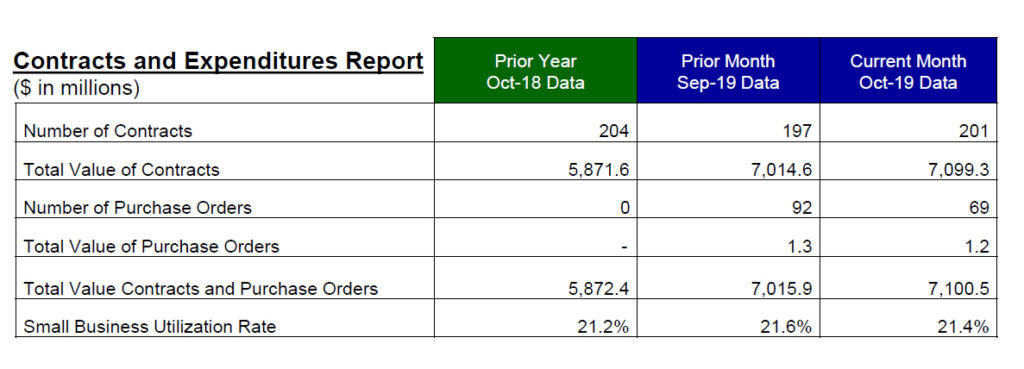
In Figure 1.0, the table’s title is placed in the A1 cell instead of as a proper heading. This creates confusion for readers. Table titles should never go inside the table itself.
Instead, place the title in a:
- <caption> tag (best option for tables)
- heading tag (like <h2>)
- or a simple paragraph <p>
The important thing is to be consistent across your document. For example, always put the caption above the table, or always put it below, but don’t mix the two.
Every Column Counts
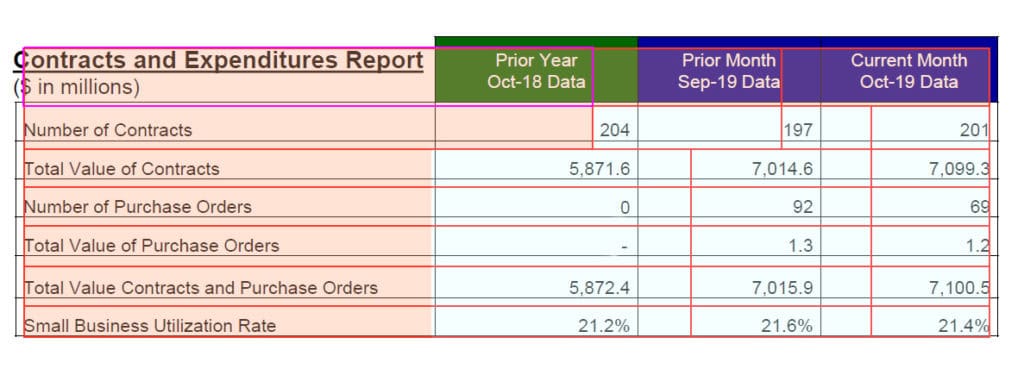
In Figure 2.0, the first row of the table only has three columns, while the rest have four. This causes errors in tools like PAC 2024, which is a free checker that tests whether PDFs meet accessibility guidelines. It also does not meet the PDF/UA standard, which is the international benchmark for making PDFs accessible. Beyond the technical checks, a table with missing columns is simply harder for people to understand.
How to: Fixing the Table
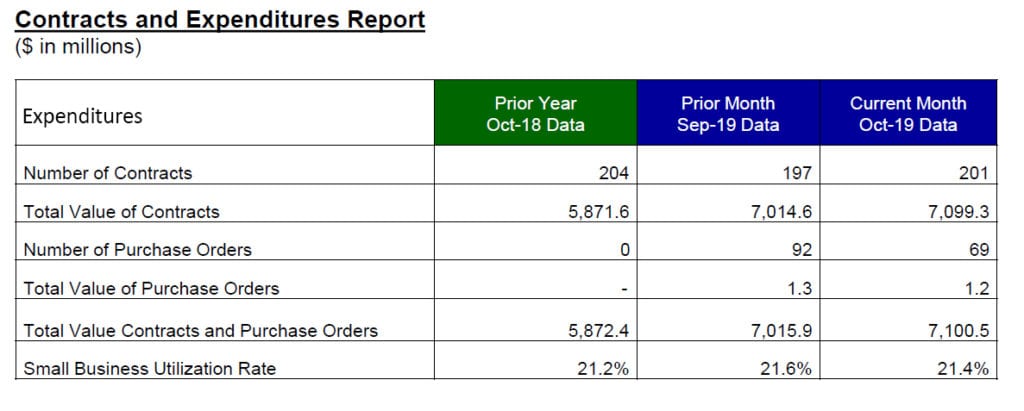
In Figure 3.0, the missing cell has been added back into the first row. We then give that column a proper header and move the title out of the table into a caption or heading tag.
Now the table passes validation. While it may still need some cleanup to be more user-friendly, this approach ensures it meets basic accessibility standards.
Key Takeaways
- When possible, provide an appropriate label in the A1 cell, never a title, or you can leave the A1 cell blank.
- Don’t put the table title inside the table; use a caption or heading instead.
Make sure all rows have the same number of columns. - Every column and row should have a clear header (Row/Column/Both).
Following these steps will make your tables easier for everyone to read, especially for people using screen readers.


In this article:
Related Content

What’s New in Accessibility

Nested Tags to Watch Out For
Related classes
-

 IAAP Credits Eligible
 3 Hours
 3 Free Plugins
Adobe InDesign Best Practices for Accessibility
Learn time-saving secrets that bring InDesign’s accessibility features to the forefront. As a bonus, receive Chax’s custom InDesign plugins and checklists! Designed for all levels of InDesign users.11:00 am EDT | 8:00 am PDT -
 IAAP Credits Eligible 3 Hours
Accessible PDF Forms
Learn how to create simple effective forms from both a source file and PDF. You’ll leave with a step-by-step guide for creating accessible fillable input fields and forms every time.11:00 am EDT | 8:00 am PDT -
 IAAP Credits Eligible 3 Hours
 4 Free Plugins
Creating More Accessible Data Visualizations
Let’s explore some complex charts and graphs, define the ideal user experience, and use a proven formula to design and describe more accessible images.11:00 am EDT | 8:00 am PDT
Need help making your digital content more accessible?
Unravel common accessibility compliance principles! Download this useful WCAG in Plain English reference card.